The key to establishing a proper format for your drills is finding your baseline. What is your baseline? Your baseline is basically the fastest time it takes you to perform the drill you want to do flawlessly.
Example Drill
Turn & Draw.
Target: Full size, 10 yards from shooting position.
Procedure: Face up range. Hands on the surrender position, on signal, turn and engage the target pulling trigger twice.
Name: Turn & Draw
Time Start: Random
Time Min: 00.01.00 Time Max: 00.03.00
Target Start: Off
Audio Start: Choose both Command and Beep
Target Stay Time: 00.00.00
Target Re-Appear Time: 00.05.00
Restart Drill In: 00.04.00
Drill Duration: Repeat 10
Ok so that is the drill. Now you need to perform this drill lowering your time until you get to a point were you are not performing well. Target Re-Appear Time (Your Par Time) is set to five seconds. This is the setting you need to lower until you find your baseline. Lower it by -00.00.10 hundredth of a second until you reach your baseline.
You need to find this for each and every drill you perform regardless if you are using the app or not. If not, how are you going to measure your progress?
Showing posts with label How To. Show all posts
Showing posts with label How To. Show all posts
Dry Fire App - How to set Drills
I've set this blog to help answer questions and listen to your suggestions about the app so lets get started. So you downloaded the app or are thinking about it and you are wondering how it works.
When you first download the app your Drills screen and your Regimen screen will be empty. Don't worry we will help you fill those really quick. There is a certain strategy when building your drills. Doing is the best way to learn so follow along.
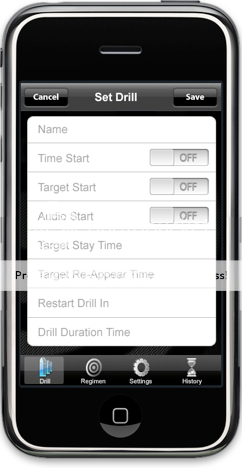
On the Drills screen - which is empty - tap the plus icon (+) on the top right hand corner. Now you are in the Set Drill screen.
 Name
NameTap the empty field with the gray out Drill Name. Type in 2-YARD INDEX 1.
Note: In case you don't know. After you write the name you can come back and while pressing and holding down the name you just wrote a looking glass will pop up. If you let go you will see a couple of choices. Select all then copy. This will help you save some time.
Time Start
The default is Instant. Tap Instant and you will see some choices. Tap to choose Random. A row will appear with Time Min 00.00.00 and Time Max 00.00.00. Tap on the numbers 00.00.00. Use the wheel to choose 00.01.00 (1 second) for Time Min and 00.03.00 (3 seconds) for Time Max, tap Done on the right hand corner to confirm and exit back to the Set Drill screen.
Note: 00.00.00 = Min.Sec.Hundredth.
Target Start
Tap the target icon. Find and choose the Circle target. Make it as big as it will go. Tap Done on the right hand corner to confirm and exit back to the Set Drill screen.
Audio Start
Tap the space next to the play button. Choose both, the Command and the Beep. Tap Done on the right hand corner to confirm and exit back to the Set Drill screen.
Note: White letters and black background means selection has been chosen.
Target Stay Time
This setting lets you choose for how long the target will stay up in the screen. Tap on the numbers and use the wheel to choose 00.02.00 (2 seconds).
Note:
Target Re-Appear Time
This setting will be left at 00.00.00
Note: This setting is used to set a Par Time.
Restart Drill in
Tap on the numbers and use the wheel to choose 00.03.00 (3 seconds).
Note: This setting will let you set the time in which the next drill is set to begin.
Drill Duration
Tap on the numbers and you will get some options. Tap Repeat, choose 5, tap Done on the right hand corner.
Note: Repeat lets you set an exact quantity of repetitions. Duration lets you set your drill to run for a specific amount of time. If the time runs out while a drill is playing it will finish that drill.
You have just finish setting your first drill. This drill is design to help you acquire your sights in a very consistent manner. Keep the height of the app the same.
Procedure: Stand 2 yards from target. Arms At Side, face target. On signal acquire sights. Do not pull the trigger.
Couple of things to take care of:
First: Run the drill and answer the following. Do I have enough time in between the drills to re-holster the weapon? If not adjust the Restart Drill in setting to increase or decrease it.
Second: Now you need to find your baseline. Your baseline is your individual capacity to fully complete a drill. That is to say without any mistakes. Your grip was on the money when you grasped it the first time. As it rose you were able to effectively place your support hand in the correct position then moved forward to let you acquire the proper sight picture to call the shot. I agree with Steven Anderson when he says that you have got to be absolutely honest with yourself about it. It is the foundation of your dry fire practice. Change the time in Target Stay Time up or down until you are able to perform the procedure and find your baseline. Write it down, we will need it later.
Note: You will find that the app requires a more refined control of your technique so your time performing this drill on the app might be higher than on a target. Don't worry about it. You'll see.
Now that you have your your time in between drills and your baseline figure out it means we can move on.
What you need to do now is go back into this drill you created - 2-YARD INDEX 1 - and change the Drill Duration from five (5) to ten (10). Now I want you to create four (4) more Drills with the exact same settings - except that you are going to leave Target Stay Time blank, we will change that later. That should bring your drills to a total of five (5).
You should see something like this:
2-YARD INDEX 5
2-YARD INDEX 4
2-YARD INDEX 3
2-YARD INDEX 2
2-YARD INDEX 1
Once you have all of them made, go to:
2-YARD INDEX 1 and change Target Stay Time to (3) or (4) seconds. I always mean for my number (1) drill to be a warm up, so if your baseline is (3) or (4) just make it a couple of seconds higher than your baseline.
2-YARD INDEX 2 and change it to .20th hundredth of a second higher than your baseline.
2-YARD INDEX 3 and change it to .10th hundredth of a second higher than your baseline.
2-YARD INDEX 4 and change it to your baseline.
2-YARD INDEX 5 and change it to .10th hundredth of a second below your baseline.
You can now play each and everyone of them in a consistent manner. Take a moment now and play through each of them or move on to the Regimen.

Dry Fire App - How to set a Regimen
 Regimens is another are were the app really shines.
 Tap on the Regimen tab at the bottom of the app. Tap the (+) plus icon to add a Regimen. If you read the How to for the Drills then you should have five Drills ready to go and a perfect example of what the app can truly do. Tap on the name field and write 2-YARD INDEX.
Hint - Knowing copying and pasting saves lots of time here.
Next you will see a Check Mark and next to it Select Drills. Tap on the Check Mark. This brings up all the drills you have created. The drills created last will show up here first - newest first. You will see a blank circle and the drill next to it. Tap on the circle to choose the drills. In this case choose all five created in the How to for the drills and hit Done on the top right hand corner.
You are back on the Edit Regimen screen and you will see that they are now sorted by the order in which they were created - oldest first. This is the default order in which they will play. You will see that now each drill has a gray out "message" and an On/Off option.
Note: The three lines to the right of the On/Off switch are so you can move the drill to a different position if you so choose.
What I want you to do is:
Tap on the gray out message for 2-YARD INDEX 1 and type: NO PAR TIME.
Tap on the gray out message for 2-YARD INDEX 2 and type: .2 Above Baseline
Tap on the gray out message for 2-YARD INDEX 3 and type: .1 Above Baseline
Tap on the gray out message for 2-YARD INDEX 4 and type: Baseline
Tap on the gray out message for 2-YARD INDEX 5 and type: .1 Below Baseline
Now tap on all of the On/Off switches and turn them On. You should see them change to On with a blue background. Remember to tap save.
You are done.
You have now made it possible to play each one of those drills back to back, just by hitting play on that particular Regimen. The message I had you entered helps but you can leave yourself other messages. "Move elbow only", "Watch your Stance", Weight on Heels" Whatever you want to remind yourself of some area you've noticed that needs constant reminding.
What other Regimens can you create?
- Regimen to warm Up before a match?
- Regimen to stretch arms and legs before a match?
- Regimen for Reloads?
- Monday Morning Regimen?
- Monday Afternoon Regimen?
- Your Sons or Daughters regimen?
It really is whatever you want to set up and whatever you can come up with.

 Posts
Posts

